How to download videos on Telegram Web: Chrome plug-in single and batch tutorials
How to download videos on Telegram Web: Chrome plug-in single and batch tutorials
On the computer, use Chrome to open Telegram Web K and install the verified Telegram Video Downloader extension to save the loaded videos individually that you have access to. When batch processing is required, first scroll to load the target media, then select and download from the extension panel. Extensions cannot gain channel access for you, nor should they bypass save restrictions set by the author.
 *Conceptual diagram: represents the single and batch download process, not a screenshot of the actual interface of Telegram or the extension. *
Select the right download method first
If the video comes from a group, channel, or private chat that you are logged in and have permission to view, the Chrome extension is usually more straightforward than copying the link; if you only occasionally save a public Telegram link, you can also try Telegram Online Toolfirst. Neither method automatically gives you access to private channels.
| Usage scenarios | Recommended approaches | What to do before starting | Main limitations |
|---|---|---|---|
| Save the currently viewed video | Single download button for the extension | Open the message containing the media and wait for it to load | Button position changes with extension or Telegram Web updates |
| Save multiple media in the same session | Extended batch panel | Scroll to the target time range first to let the media enter the page | Usually only the loaded content can be recognized; the free quota is subject to the current interface of the extension |
| Handle a public message link | Telegram online tools | Copy a publicly accessible message link | Content may not be parsed when logged in or under permission control |
This article reviews the environment
The following information was cross-checked on this machine and on the public page on August 4, 2026. This article does not test bypassing save limits using real private channels, and does not make guarantees about speed, success rate, file caps, or private content support.
| Project | Value of this review |
|---|---|
| Operating System | Windows 11 Pro 10.0.26200 |
| Browser | Google Chrome 150.0.7871.188 (desktop version) |
| Telegram Web | WebK: https://web.telegram.org/k/; Telegram’s official application page lists both WebK and WebA |
| Extensions | Telegram Video Downloader 2.2.5.8; Chrome Web Store shows updated on June 8, 2026 |
| Review date | August 4, 2026 (UTC+8) |
| Scope of review | Verify the installation page, store version, public function description and real preview of the product; download private content without logging in to a real Telegram account |
Install Chrome extension
- Open the Telegram Video Downloader plug-in installation pageand enter the Chrome Web Store entry it points to.
- Check the extension name, developer website domain name
downloadvideos365.com, current version, latest update time and privacy disclosure, and avoid installing programs with the same name from search ads or third-party compressed packages. - Click "Add to Chrome", read the permission prompt and then confirm. Google's official instructions emphasize that only extensions you trust should be approved.
- After installation, click the extension menu on the right side of the address bar and pin the extension to the toolbar to facilitate opening the batch panel.
- If the computer is managed by work or school, the administrator may prohibit the installation of extensions; incognito mode and guest mode cannot directly add extensions.
Single download Telegram Web video
- Open Telegram Web Kin Chrome and log in using the official Telegram process. Do not enter verification codes or passwords into extension pop-ups or third-party web pages.
- Go into a channel, group or chat that you have access to and find the video of interest.
- Wait for the video thumbnail and message to load completely. Scroll up or down slightly if necessary to let the extension re-identify the current message.
- Find the green “download” button below the video or image and click it. Button text, color, and location may be updated from version to version.
- Wait for the download progress to be completed in the upper right corner of Chrome, and then select "Show in Folder" to confirm that the file has been placed on the disk.
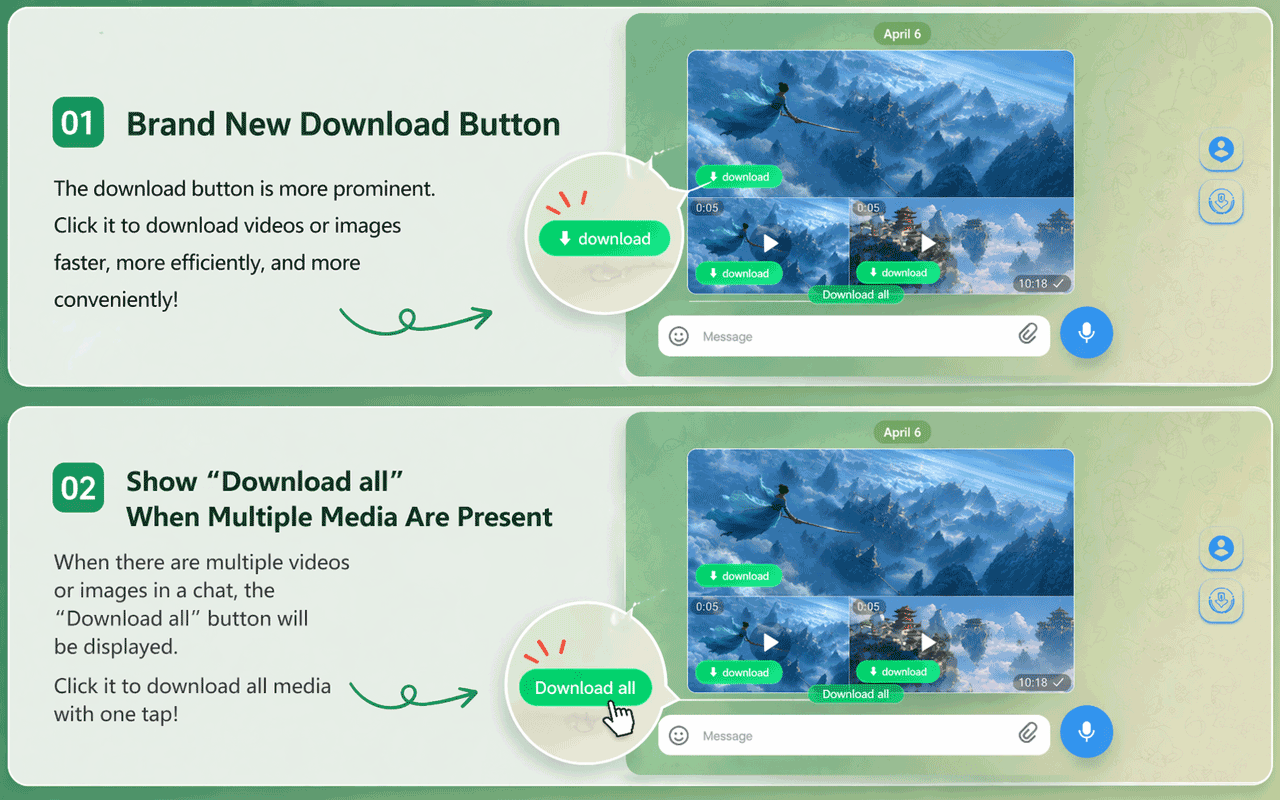 *The current real preview of the product side: "download" is displayed below a single piece of media. "Download all" may be displayed when the same message contains multiple pieces of media. The actual interface is subject to the current version. *
If the button does not appear, do not refresh continuously or log in repeatedly. First make sure you are opening web.telegram.org, the extension is enabled, and the message is loaded, and then check the troubleshooting steps below.
Download videos in the same chat in batches
- First determine the date or message range that needs to be saved, and only operate in chats that you have permission to back up.
- Scroll up from newer messages, progressively loading media within the target range. The extension can only handle items already recognized by the page and cannot be assumed to cover the entire history channel at once.
- Click the extension icon in the Chrome toolbar to open the “Batch Download” panel.
- Check items one by one according to preview, type and duration; test run with a small number of files first to confirm that the save directory and file contents are correct.
- Click “Download Selected”. If Chrome asks to allow automatic downloading of multiple files, only grant permission for the verified site and this task.
- Check the Chrome download list for successes, failures, and duplicates. When downloading is interrupted, first check the network, disk space and browser prompts. Do not equate "start downloading" with the fact that the file has been saved.
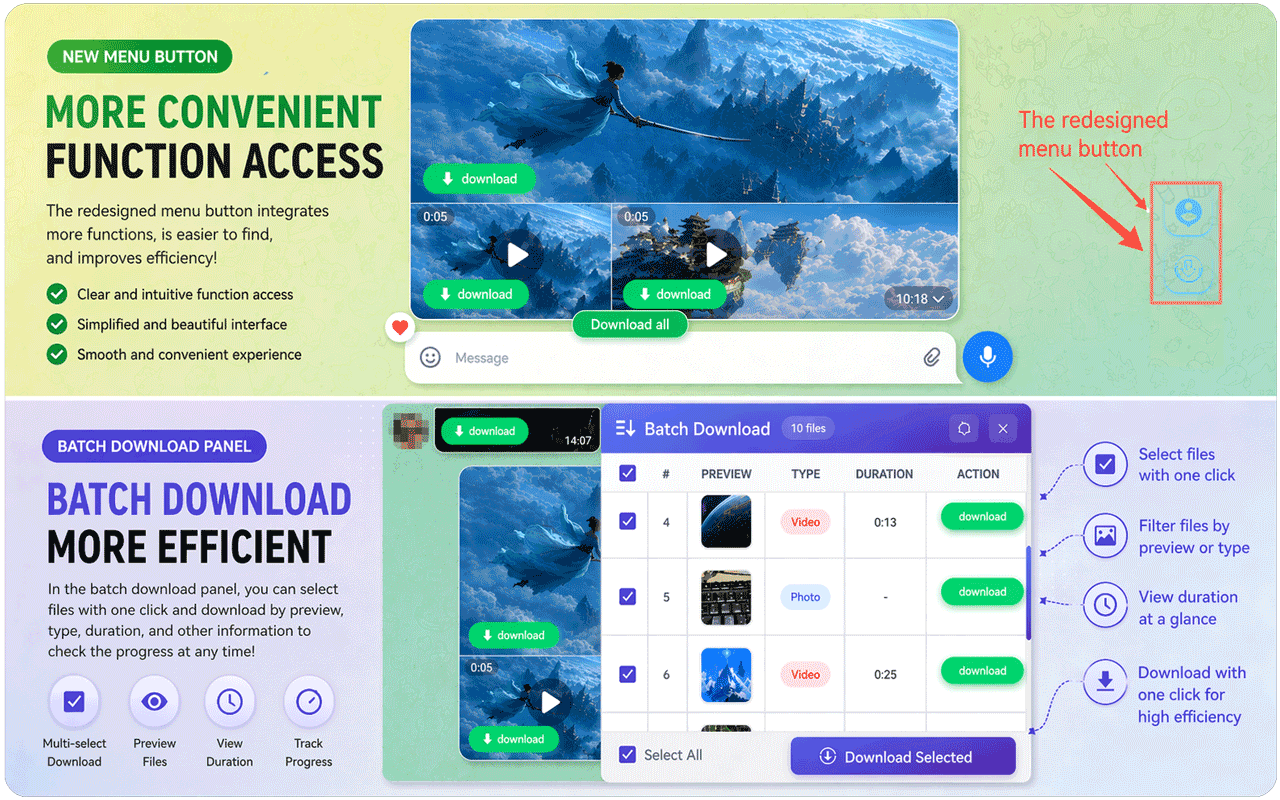 *Current real preview on the product side: The batch panel can select items by preview, type and duration, and execute "Download Selected". This is a real product promotion picture, and it does not mean that this article has conducted actual tests on all sessions. *
What to do if single or batch buttons do not appear
Checking in the following order is usually faster than repeatedly reinstalling:
- **Confirm the page address. ** Priority is given to using WebK specified in the product tutorial; the store description also states that it is compatible with WebK and WebA, but short-term differences may occur after the web page is updated.
- **Confirm that the extension is enabled. ** Open
chrome://extensions/, check the extension switch, error message and whether it is disabled by Chrome. - **Let the media actually load. ** Scroll to the target message and wait for the thumbnail to appear; the batch panel will not scan historical messages that have not yet been loaded.
- **Refresh the page instead of re-entering the account number. ** Refresh Telegram Web and open the message again. The extension does not require you to hand it your Telegram password.
- **Reduce conflicts. ** Temporarily disable other extensions that modify Telegram Web pages or block downloads, and then test a small file that you have permission to save.
- **Check Chrome Download Policy. ** Work or school equipment, automatic download settings, security software, disk space, and network errors can all block multiple files.
- **Stop trying if it still fails. ** Record the Chrome version, WebK/WebA, extension version and error report before contacting extension support; do not upload screenshots containing chat content, verification codes or account information.
Permissions, privacy and legal usage boundaries
Telegram officially explains that group or channel owners can enable "Restrict Saved Content" to restrict retweeting, screenshots, and saved media. This is an access boundary explicitly set by the creator. Even if a third-party tool claims to handle restricted content, you should only save content that you own, have been expressly authorized by the author, or can be saved by law.
This extension is an independent third-party tool and is not an official Telegram product. As of this writing, the developer's privacy policy says downloads occur locally and no personal information is collected; meanwhile, the Chrome Web Store's privacy card lists disclosures for the processing of "personally identifiable information" and "financial and payment information." The two statements are not completely consistent, so you should re-read the latest "Privacy" and "Permissions" sections of the store before installation, and decide whether to use it based on your own risk tolerance. A store badge or shelf status also doesn't equate to an independent security audit of each release.
Telegram’s content licensing terms also require users to comply with rights holders’ restrictions on content use and copyright. Please do not batch crawl channels that do not belong to you, disseminate paid courses or copyrighted videos, and do not re-upload, sell, or use downloaded files for harassment, monitoring, and training data sets. When work information or other people's privacy is involved, obtain written authorization first and limit the scope of storage.
FAQ
Can I download the extension without logging in to my Telegram account?
The extension shouldn't ask you to hand over your Telegram password to it, but to view chats that require a login, you'll still need to enter your account through Telegram Web's official login process. For public message links, you can try online tools first, and private content must first have legal access rights.
Why can the video be played but there is no download button?Common reasons are that the extension is not enabled, the media has not been loaded, the page has just been updated resulting in compatibility differences, or other extensions conflict with the download policy. First confirm the WebK address and extension version, then refresh the page, scroll to load the target message, and retest with a small file that has the right to save.
Can I batch download the entire channel at once?
Do not understand the batch function as unconditionally exporting the entire channel. The store description requires scrolling through the chat first to allow the media to be detected, and the actual range of options depends on loaded content, current extension version, account permissions, free credits, and Chrome's automatic download settings.
Where are the downloaded videos saved?
Chrome saves files to the system "Downloads" directory by default. Windows is usually \Users\<用户名>\Downloads. You can change the default location in Chrome's "Settings > Downloads" or turn on "Ask where each file is saved before downloading."
Can both WebK and WebA be used?
Telegram’s official application page confirms that WebK and WebA are both official web clients; the extension store’s current description states that both are compatible. In order to reproduce the steps in this article, it is preferred to use the WebK specified in the product tutorial. If the button is missing, you can switch versions and retest on the premise of confirming the security of your account and permissions.
Is this extension safe? Can I download private or restricted content?
It is a third-party extension and cannot be judged to be "absolutely safe" simply by being listed on the store or advertised by the developer. The private channel must be legally joined by your account first; for content whose storage restrictions are enabled by the administrator, the creator's settings and copyright requirements should be respected. Please review the latest permissions, privacy disclosures, and developer policies before installing.
Source and update time
This article was updated on August 4, 2026 (UTC+8) and visit the following page:
- Telegram official application list: WebK and WebA- Telegram Official: Protected Content for Groups and Channels- Telegram Content License Terms- Chrome Web Store: Telegram Video Downloader- Google Chrome Help: Installing and managing extensions- Google Chrome Help: Download files and save locations- DownloadVideos365: Telegram Video Downloader plug-in page- DownloadVideos365: Telegram online tool- DownloadVideos365: Telegram Downloader Privacy PolicyThe page, extension version, quota, button location and privacy disclosure may change; please refer to the Telegram, Chrome Web Store and product pages of the day before operating.